If you encounter problems with the connection between CELUS Data Hub and Power BI desktop, it is usually one of the following problems:
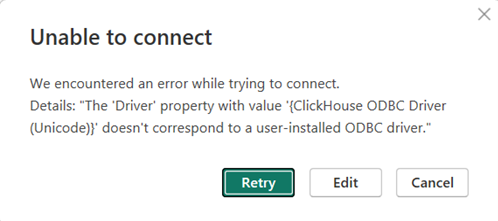
The ClickHouse ODBC driver needs to be installed on your computer. Its absence is indicated by the following error message:
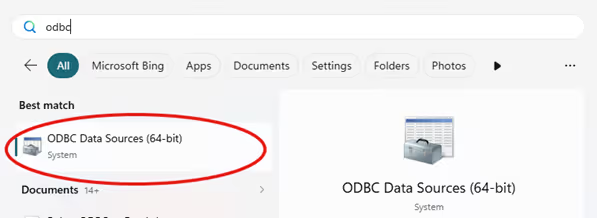
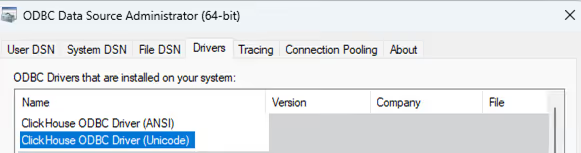
You can check if you have the right version of ODBC driver by opening the Windows Start, start to write "odbc" into search and open ODBC Data Sources.
At the “Drivers” tab, you should see ClickHouse ODBC Drivers ANSI and Unicode.
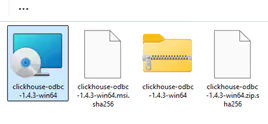
If not, download the latest non-beta version free from ClickHouse ODBC release and execute the supplied installer.
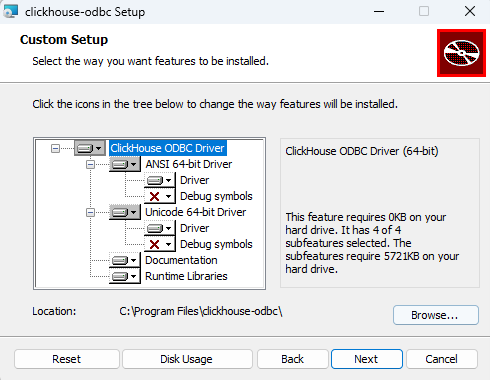
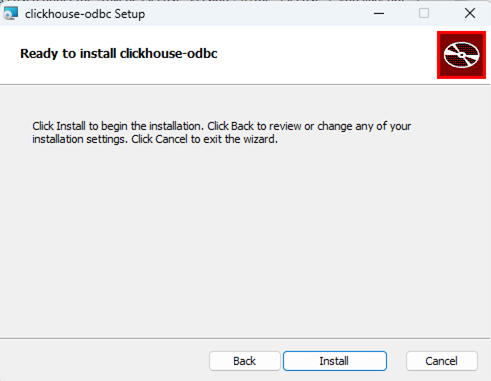
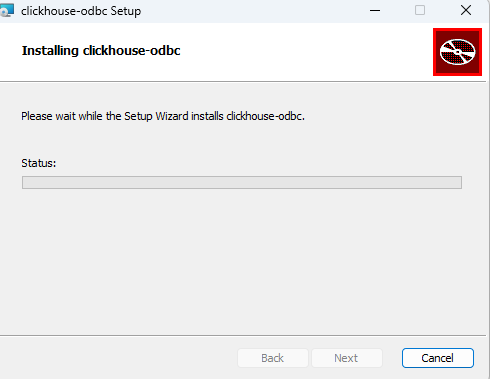
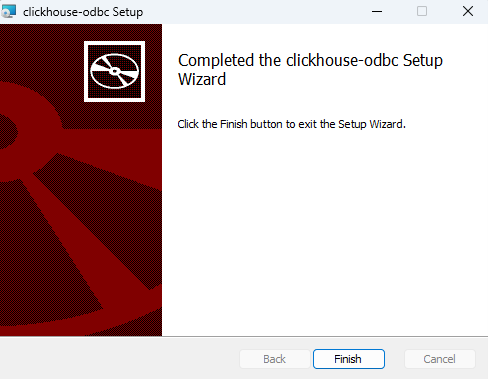
Follow the setup wizard, which will guide you through the process in the following steps:
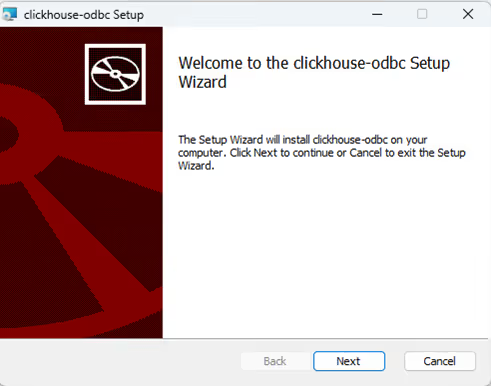
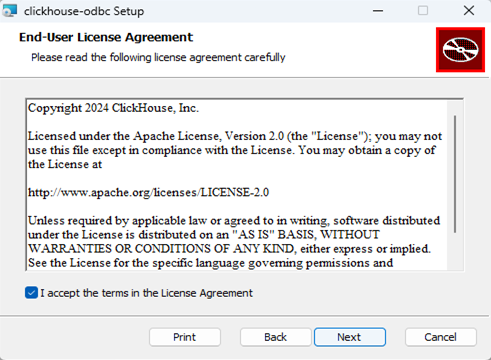
No changes need to be made to the default setup unless required by you or your organization.
The full ClickHouse support page to the integration with Power BI is at Power BI | ClickHouse Docs.
You can choose either the port number 8443 (HTTPS, recommended) or 9440 (Direct).
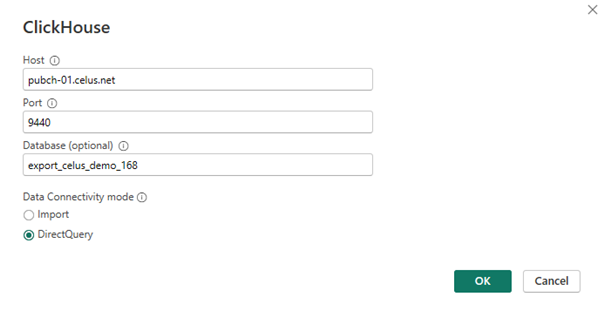
The following message appears if the port doesn’t work.
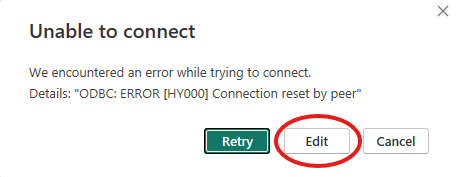
Click on “Edit” and type in the other port number.
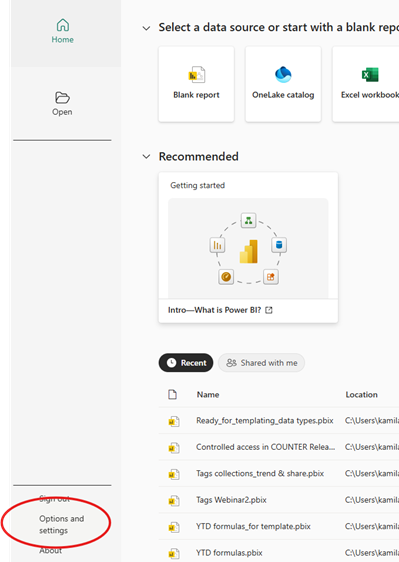
In Power BI, the user names and passwords are stored separately from the data files. To manage them, click on Options and settings at the home screen.
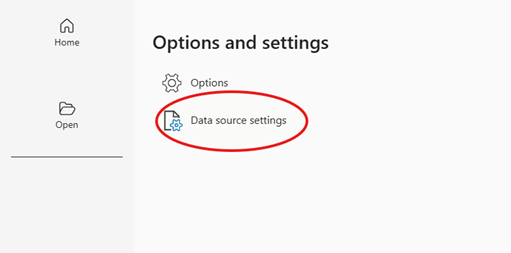
There, you click on Data source settings.
Select the ClickHouse permission.
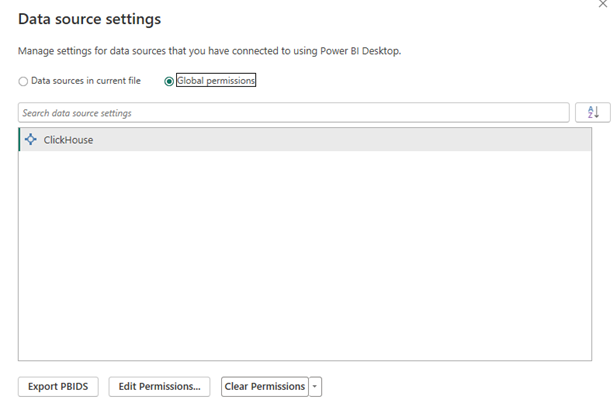
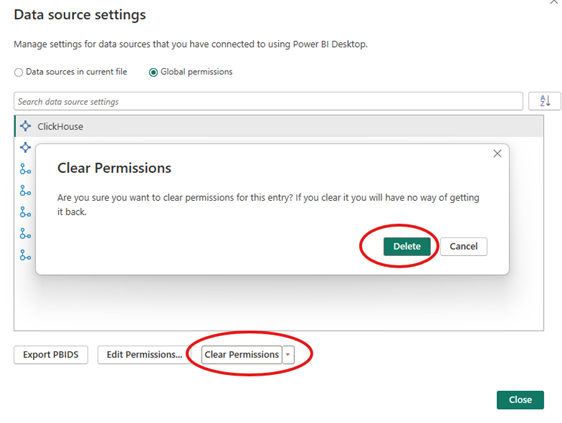
You can edit the user name and password by clicking on “Edit Permissions” and then “Edit”.
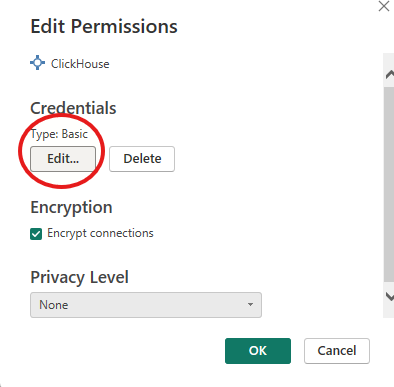
Alternatively, you can remove your credentials by clicking on 'Clear Permissions' and then 'Delete'. You will be prompted to re-enter your username and password the next time you connect from Power BI to the Data Hub.