
To help our users seamlessly transition to COUNTER version 5.1, CELUS provides the option to clone your existing COUNTER 5 credentials with an automatically updated SUSHI URL. Please note that the cloned credentials will only function for publishers already offering COUNTER 5.1 reports.
You can find the newest information about which publishers already provide 5.1 reports on our website: https://www.counter51.info/. Please note that this database is updated once per day.

You can also find out which publishers already provide COUNTER 5.1 reports in the COUNTER Registry:
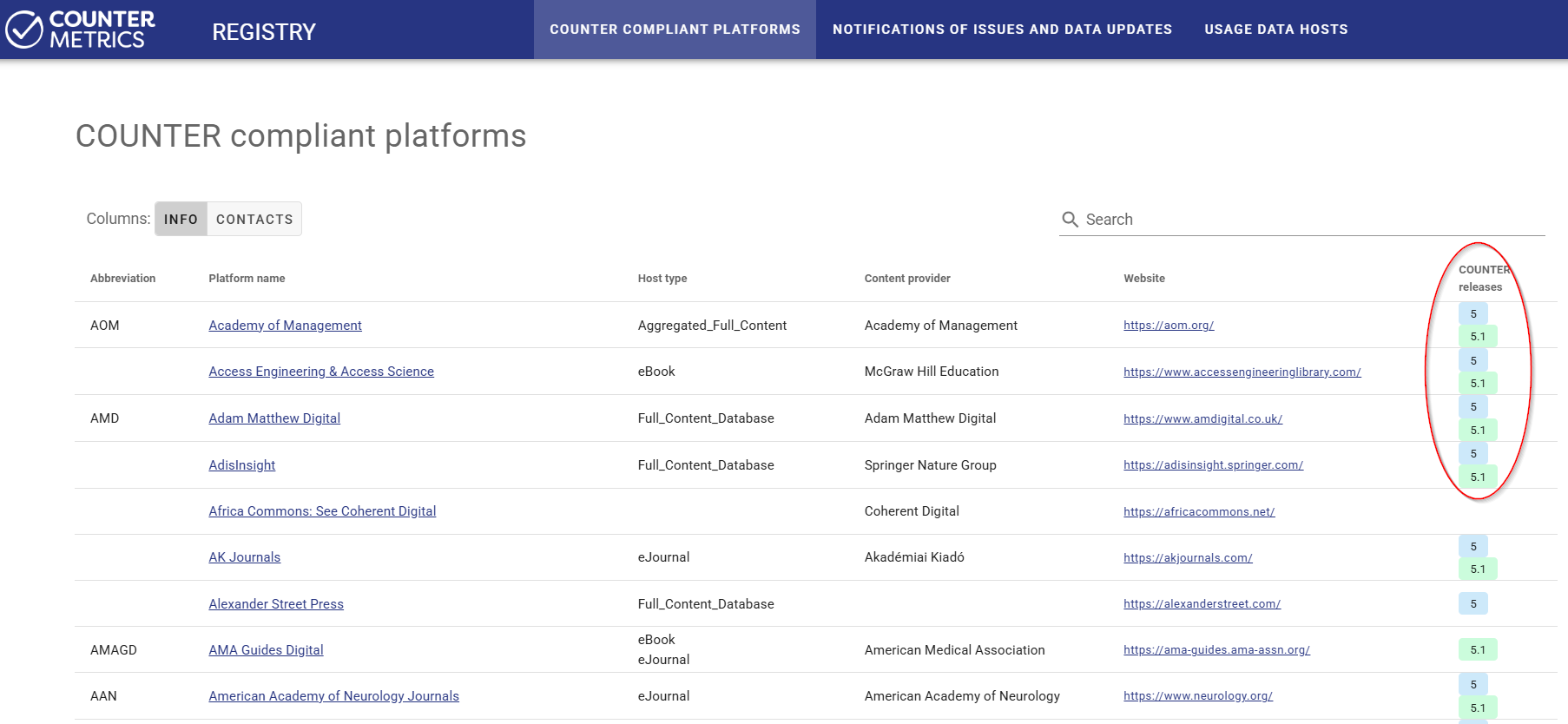
Even though it is recommended by COUNTER Metrics that the publishers keep the same credentials for COUNTER 5.1 API as for SUSHI API of COUNTER 5, some publishers may not adhere to this practice and require users to generate new credentials. Once this information becomes available to CELUS, we will publish it here.
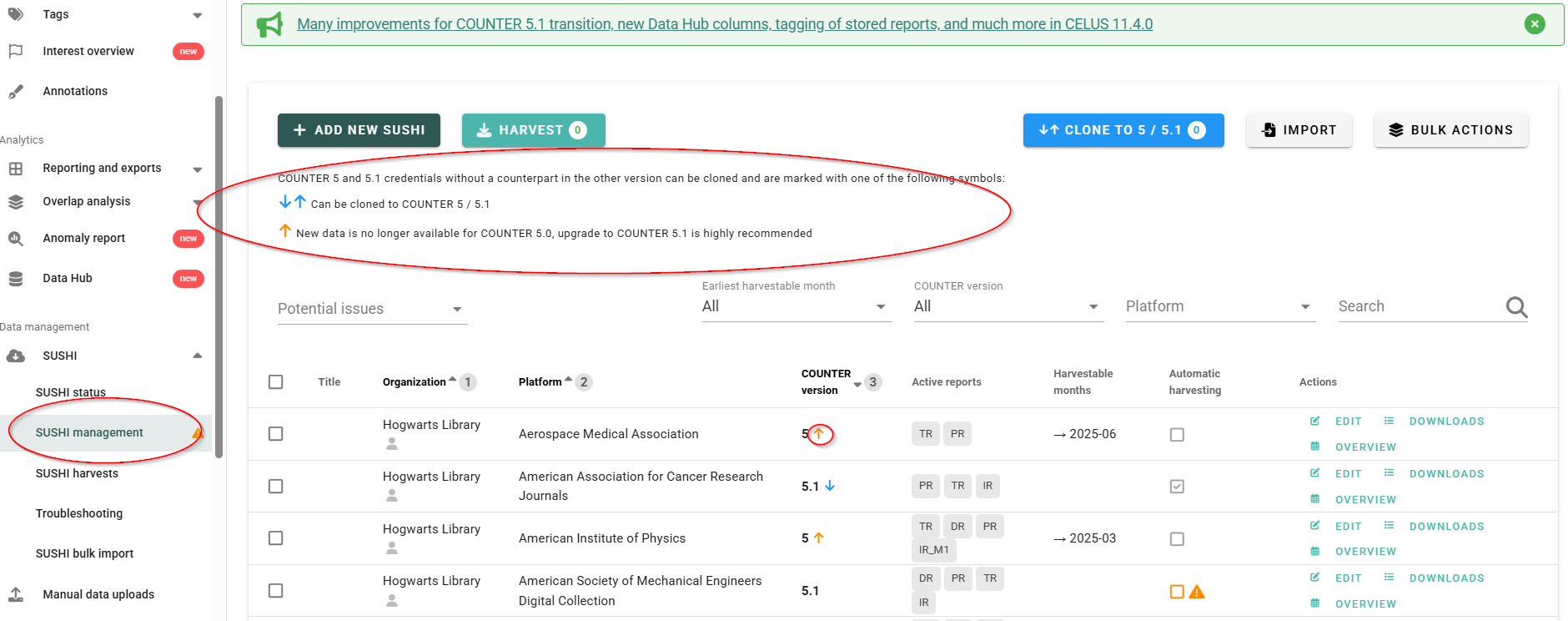
1. Go to "SUSHI Management" in the left-hand menu and review the credentials that can — or even should — be cloned.
Please, pay attention to the explanation at the top of the page:


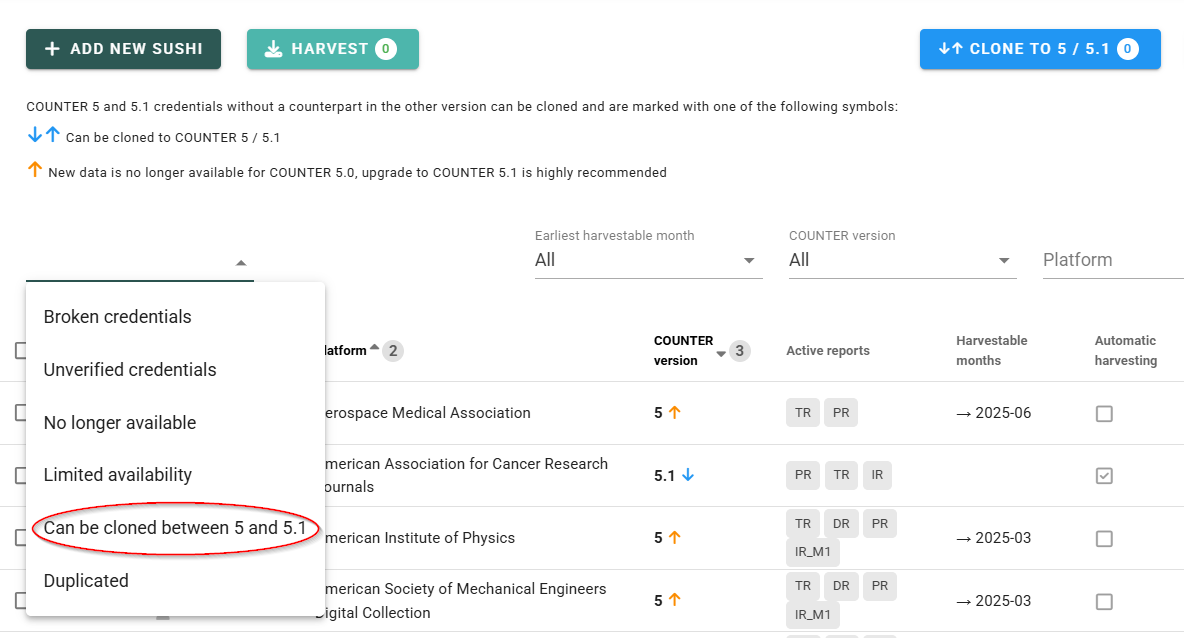
2. Select the credentials you want to clone.
You can either select platforms individually by checking the corresponding boxes, or choose all credentials available for cloning at once. To do so, open the "Potential Issue" filter and select "Can be cloned between 5.0 and 5.1".
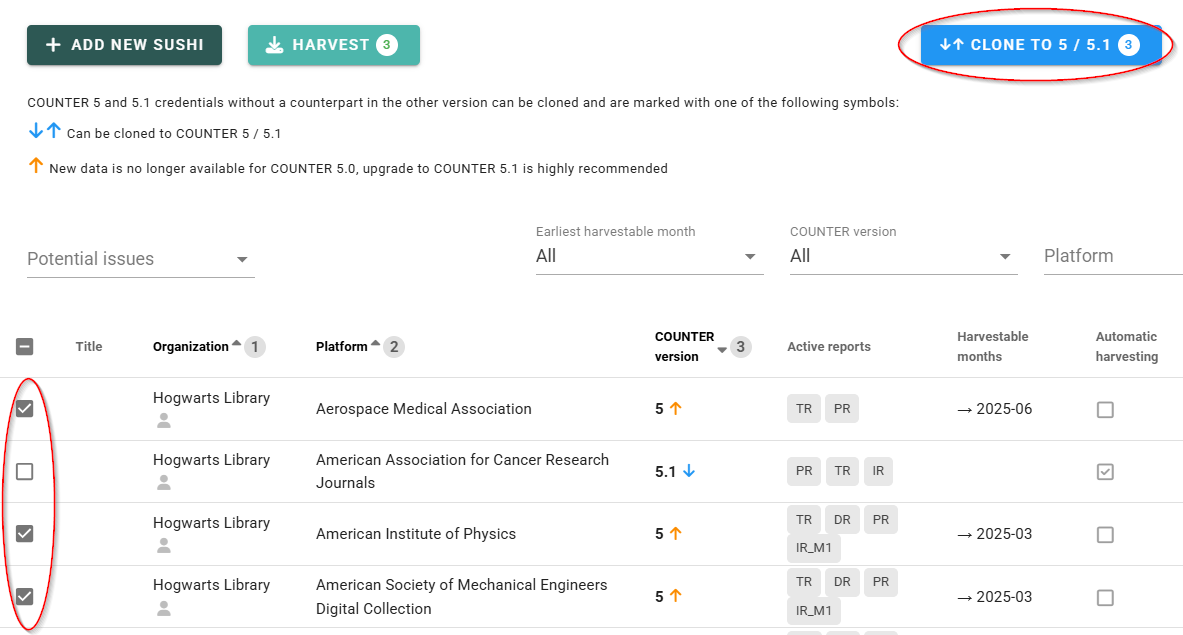
3. Click the box next to your selected credentials and click the "CLONE TO 5 / 5.1" button:
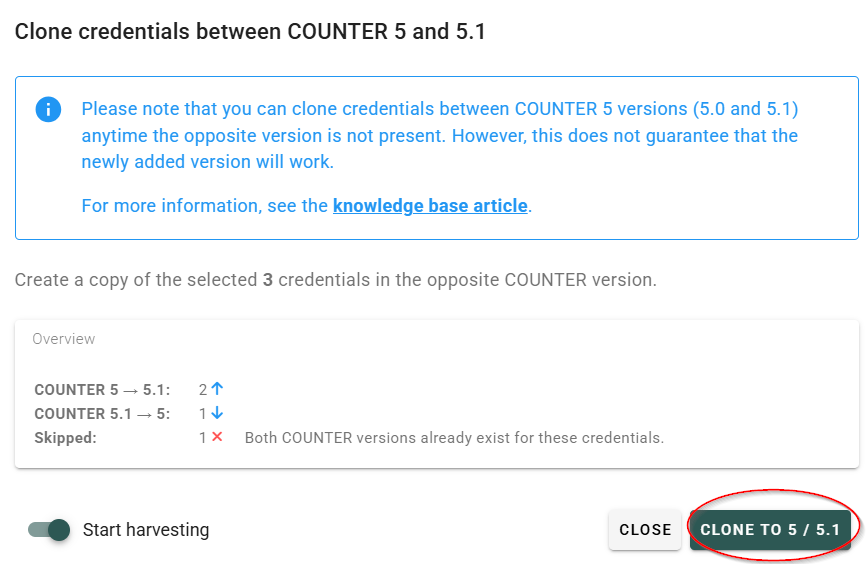
4. Review the list of credential clones that will be created.
Keep the "Start Harvesting" slider enabled if you want CELUS to verify the credentials and start harvesting immediately. Then click "CLONE TO 5 / 5.1" button:
5. Verify new credentials by harvesting reports.
Harvesting dialog will open. Here, you can choose the start and end dates for harvesting. We recommend starting with only a few months of data so that the functionality of the credentials can be verified as quickly as possible. Then click "Start XX Downloads".

6. Overview the results.
Once the reports are harvested (green arrows will let you know), or once the download process stops being entertaining, you can close the dialog and view the results in the Overview:

(7. Debug SUSHI)
If there is an issue with the credentials, a red triangle will appear. The next best step is to check the Downloads section. See more in Debugging SUSHI.