
Watch our video guide:
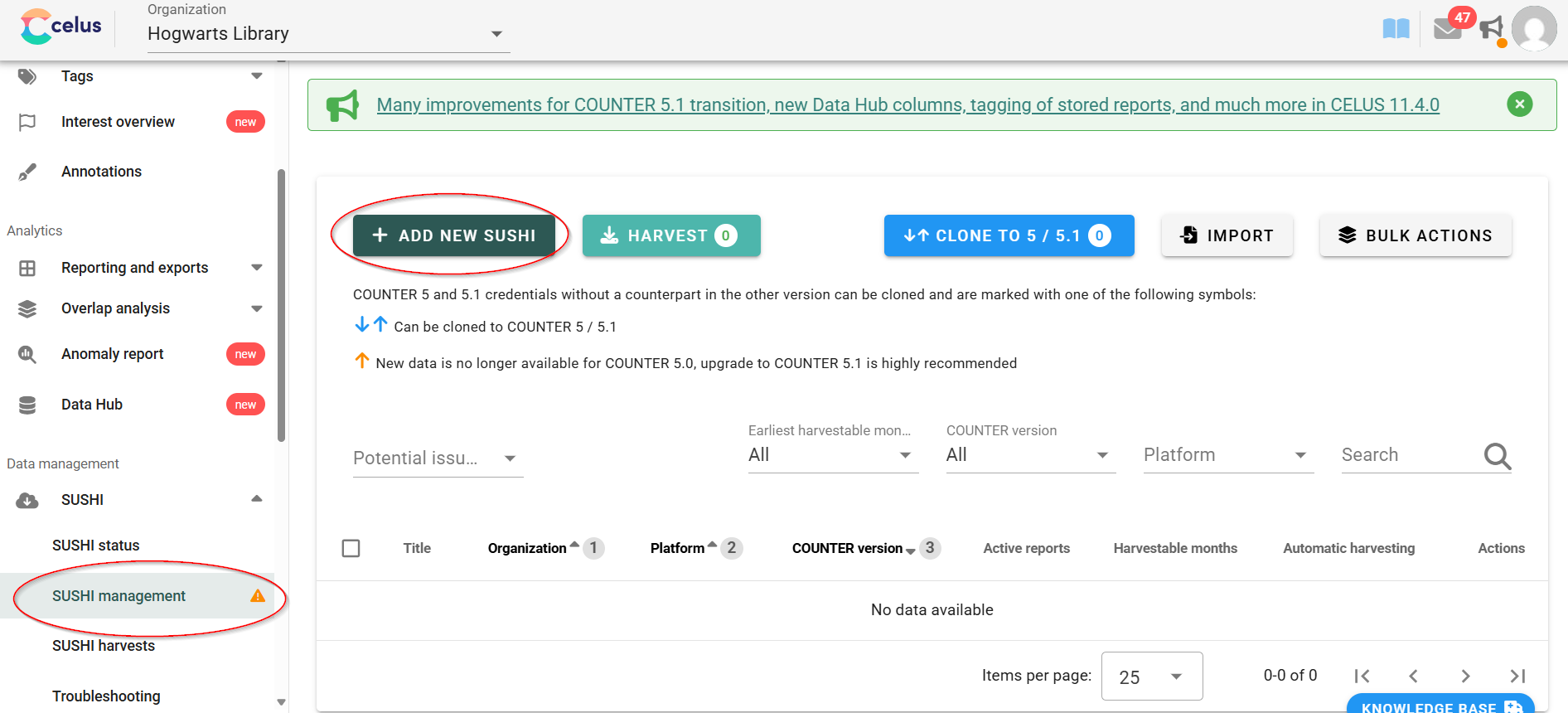
To add new SUSHI credentials, navigate to "SUSHI management" in the left sidebar menu and click on the green "ADD NEW SUSHI" button.
The following dialog will open with all relevant data. Please note that you can only have one set of credentials for one platform per organization and COUNTER version.
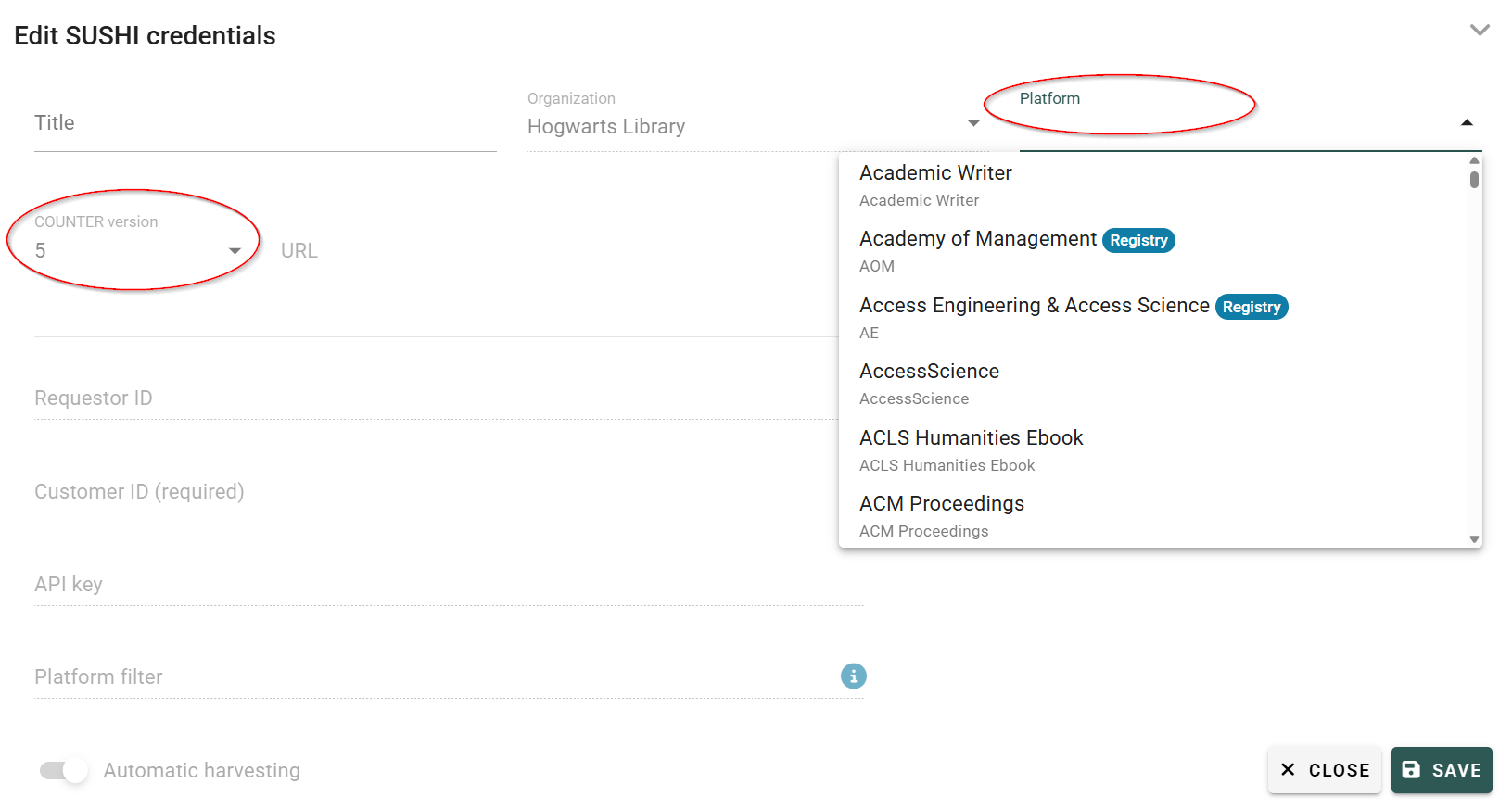
The first step is to choose the platform you are adding credentials for. Please note that CELUS already knows most of the SUSHI platforms and all of the platforms registered under Project COUNTER Registry. In case you cannot find the platform in our list anyway, you can Add a custom platform (however, we advice you to really try to find the platform in our list first, as it keeps CELUS clean and also provides your platforms with automatic updates).

If you choose a platform included in the Counter Registry, you will see an outclick icon next to it. This icon will take you to the corresponding page in the Counter Registry:
Next, you need to fill in the minimum required parameters before you can save the credentials. Your provider should supply all the information you need on this page. The dialog contains the following fields:
Title
Your name for the set of credentials. This field is completely optional and does not have to be filled.
Organization
The organization will be prefilled with the one currently active.
Platform
You may select amongst all available platforms, but if you select a platform for which credentials for all supported COUNTER versions are already present, it will not be possible to select COUNTER version and save the record.
Requestor ID
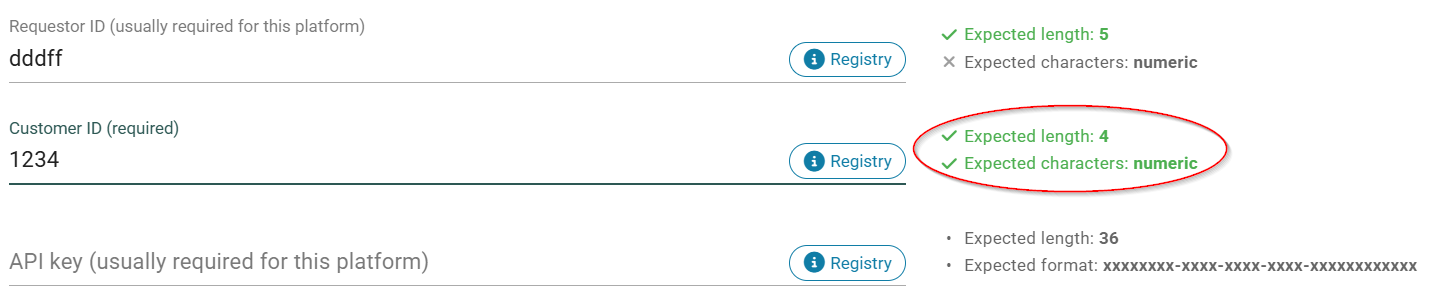
It identifies the party requesting the data. For some platforms, it matches the Customer ID, for some it is different from it and for some it might even be empty. Whether this field is required, along with other details from the COUNTER Registry record, can be found under the Registry icon:

Customer ID
Identifies the organization for which data should be downloaded. This is a mandatory field. Again if the Registry record has anything more to say about this field, you'll find it hiding behind the Registry icon.
API key
Fill only if the API key was provided by the platform.
Note: As CELUS has been swimming in SUSHI credentials for years, it has learned a thing or two about the usual formats and expected values for the fields above. To save SUSHI managers some detective work, helpful hints are displayed whenever possible:
COUNTER version
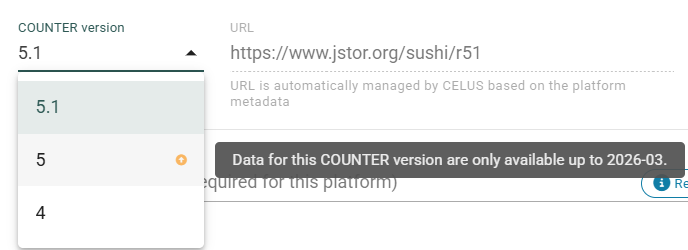
This drop-down menu contains only values that are supported by the system and that do not already have a record set up for this organization and platform. If credentials for all supported COUNTER versions are already defined, there will be no values to select and the credentials cannot be saved. In that case, you need to edit the existing matching record instead. Any limitations in data availability or service discontinuation are indicated for the respective COUNTER version.
URL
The URL of the SUSHI server. This is a mandatory field. If the URL provided to you by the provider ends with /reports/, remove this part as it will be supplied automatically. If the URL was prefilled by the system, it is most likely the correct URL for SUSHI harvest. Please, do not change this value unless you are absolutely sure that yours is correct.
Extra attributes - platform
If you have been provided with some extra parameters for accessing SUSHI, this is the right place to put them. Usually this is only considering the “Platform” parameter (e.g. Elsevier platforms use this parameter to distinguish between Engineering village, ScienceDirect, and so on).
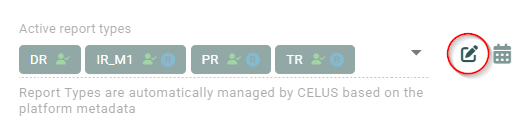
Active report types
A list of reports available for the selected COUNTER version (note that if no COUNTER version is selected, the list will be empty). Select at least one report that you wish to download.
If the platform is COUNTER-compliant, CELUS offers to harvest supported report types according to the Registry record (indicated by the “R” icon). You can change which report types should be harvested by clicking the pen icon.
Earliest harvestable month

Optional settings hidden beneath the calendar let you set a date before which CELUS will not attempt to harvest any data. This is typically the start month of your subscription.
Automatic harvesting
If you prefer CELUS not to automatically download data every month, you can switch it off. But it is enabled by default for a good reason - to spare you from remembering yet another monthly task.
Purchased outside of consortium
Indicates credentials for platforms where access was purchased directly by the organization, not through the consortium. Only Master Organization members or Superusers are allowed to disable this option.
HTTP authentication – only for Counter 4
Some providers add extra protection to their SUSHI data. Here you can supply the username and password for HTTP authentication if it was given to you by the provider explicitly for the purpose of accessing SUSHI. Valid only for Counter 4!
The bottom of the dialog window has the following buttons:

Only visible if the credentials were already saved. Removes the credentials from the system.
Closes the dialog. If the content was not saved, it will be lost.

Saves the credentials and opens a dialog that allows immediate testing of the supplied credentials. It is considered good practice to immediately test newly created credentials.

Saves the credentials and closes the dialog.
If the credentials are not working for you, see Debugging SUSHI.